01
Chat and Cowork are now one
The desktop app has two homes now. Chat (which swallowed Cowork) and Claude Code.
- Chat is for talking through ideas and making simple things like a proposal.
- Claude Code is for building things and running your business. Yes, there's code underneath. No, you never have to read it. I don't.
Try this: open Claude Code and describe one task you do every week. Let it build the first version.
02
Artifacts grew up
An artifact is its own workspace that opens beside your chat. Make one in Chat and it shows up in Code, and the other way around.
- Docs: interactive documents, a lot like Google Docs.
- Slides: presentation decks, no extra tool needed.
- Sheets: spreadsheets that can pull from your connectors.
- Design: website mockups, app screens, and your design system.
- Data: charts and tables from your numbers, each marked with its source.
- Motion: animated graphics. Still rolling out, so you may not see it yet.
Two things to know: artifacts are shareable with one link (great for client approvals), and they can refresh on a schedule, like pulling your sales in every morning.
03
The session rail
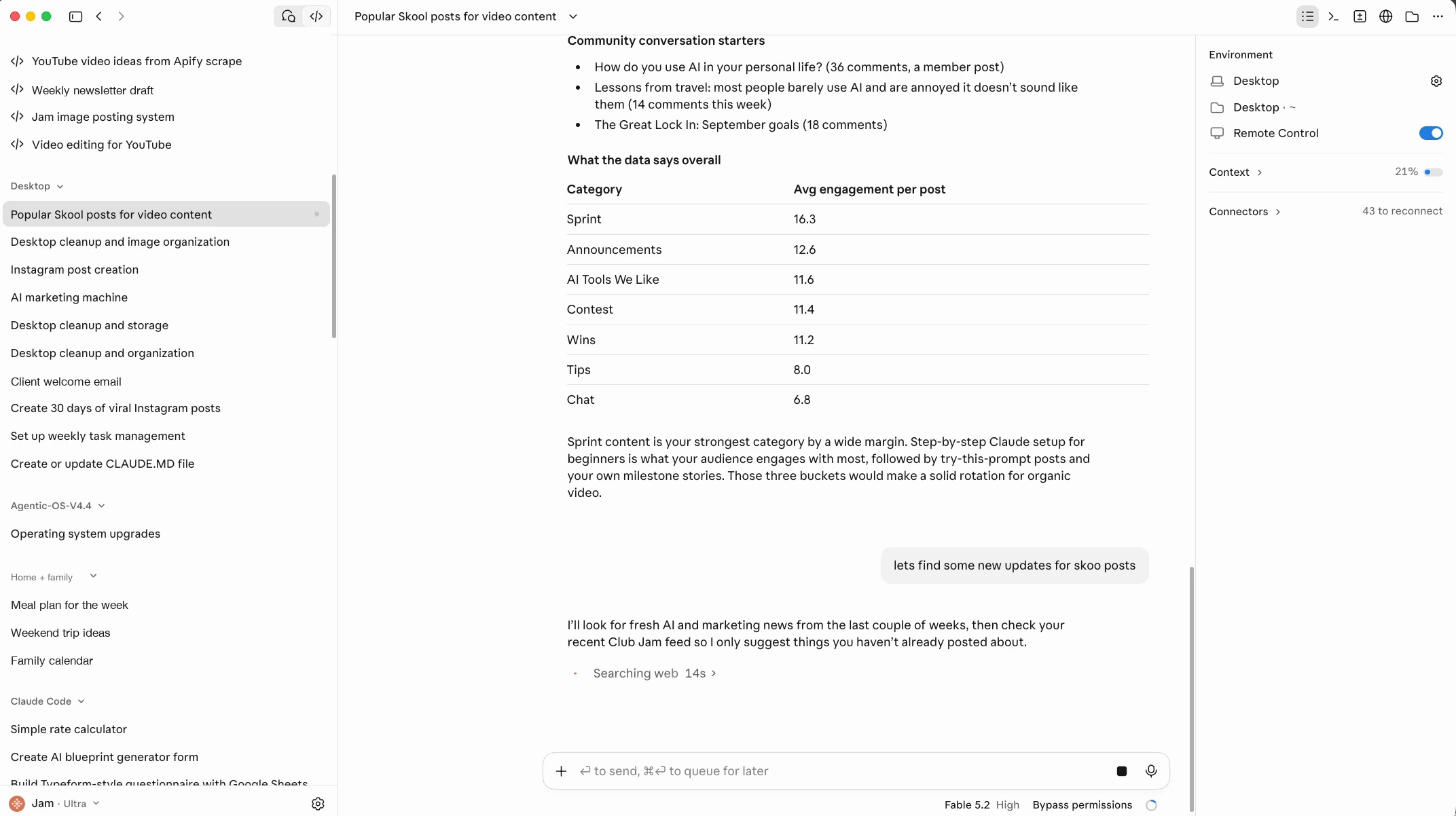
Click "Show session rail" at the top right of a Claude Code chat and you can finally see what's going on under the hood.
- Where it's running: your computer or the cloud, plus the folder it's working in.
- Context: how much of your 1 million tokens you've used and what's using them. Turn on auto compact so long chats stay sharp.
- Changes: everything it did along the way, so you can step back if you need to.
- Terminal, browser and simulator: Claude can work a browser for you, and you can test an app without leaving the chat.
- Files: every file this session touched or created.
04
Stay organized
No more hunting for yesterday's great working session.
- Sidebar sections: group your chats by project. Click the three dots on a chat, then "Move to section."
- Side chat: ask a quick question while Claude keeps working. Side chats are not saved.
- Fork: take a chat in a new direction. Forks are saved in your sidebar.
- Split view: three dots, "Open in," then "Split view" to run sessions side by side. Three at once feels right to me.
Try this: make one section per client or project today. It takes two minutes and you'll feel it all week.
05
Work while you're away
Close the laptop. The work keeps going.
- Remote control: toggle it on in the session rail, then pick the chat up in the Claude app on your phone under Code.
- Make it the default: Settings, then Code, then "Connect new sessions to remote control."
- Keep computer awake: in the same settings. Your computer stays on until Claude finishes, so overnight work actually completes.
- Cloud: run a chat in the cloud and it keeps going without your computer. It can't see your local files, so keep your work in a GitHub repo it can connect to.
06
Nested sessions, master sessions and Projects
These three confuse everyone at first, including me. Here's which one to reach for.
| Use this | When you want to | Good to know |
|---|
| Nested session | Split one big job into smaller parts that run at the same time. | Each part reports back to the main chat. It only knows what the main chat hands it. |
| Master session | Keep one pinned chat as your control center for everything else that's running. | Not a button. It works because Claude Code chats can see and talk to each other. Think of it as the agent of all your agents. |
| Projects | Run ongoing work, like a client account, toward one big goal. | A lead chat briefs separate threads, mostly in the cloud. Every thread shares the project's instructions, memory and files. In beta right now. |
07
Mods
A mod changes Claude's interface just for you. Some people build little games to play while they wait. Mine checks that everything I write follows my own brand rules.
- You don't need to know what to build. Claude can read how you already work and suggest one.
Try this: the two prompts in the free section below. That's exactly how I found mine.
08
Duet
Duet is Claude's personal AI agent. Right now it's a research preview on the web and on your phone, not in the desktop app yet. It gives you a daily task list, what's up next, what's scheduled and what's done, and it leans toward helping with work more than running your personal life.
Try this: ask it, "How can I best take advantage of you?" It set up my whole left side and told me how to use it.